Showing posts with label SAP Hold and Parking. Show all posts

SAP Post Held documents

SAP Post Held Documents
A. For Documents that was held in CURRENT fiscal period

1. Click "Tree On" button of the "Enter G/L account document" or "Enter vendor invoice" screen


2. Click Held documents


3. Double Click the document you want to post
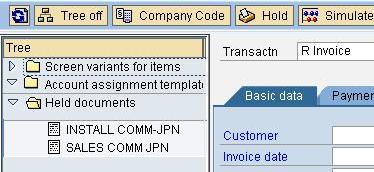

4. The following screen will be appeared

5. Click to scroll through the document
6. make changes as needed
7. Save


B. For Documents that were held in Previous Fiscal Period
1. Change the posting date to current fiscal period


2. Save

Back


SAP Hold & Set Data

SAP Procedure Hold Data & Set Data on Screen
Use Hold Data or Set Data when you want to create a group of objects that contain similar data. these functions automatically enter the specified data in the specified field.


1. Enter the data that you want to hold in the input fields.
2. From the menu bar, choose System -> User profile.


3. If you choose Hold Data,
You have option to change the held data when it appears in the input fields.

4. If you choose Set Data,
The cursor automatically skips input fields with held data and you cannot change it.

All data you entered are held on the screen.
There is no limit to the number of screens you can hold data on.
The data you hold on a screen is held until you delete it or until you log off the SAP system


Deleting Held Data
1. Go to the screen that contains the data you want to delete.
2. Choose System -> User profile -> Delete data.
The data is deleted.

The next time you access the screen, no held data is displayed.

Back

SAP Delete Held MIRO

SAP : To delete a held MIRO
from the menu, Choose Invoice document -> Delete


SAP MIR6 Post MIRO Invoice

SAP MIR6 to Post Held MIRO Invoices

1. Go to Tcode MIR6


2. Type in the fiscal year, user name, and company code.
Choose "Entry Type" : Held/Parked
Choose "Invoice Status: Held, Parked, and Parked as Complete.
You can use dates and reference codes to further narrow down the selection

3. Click on the document number to enter the change or post mode (MIR4).

Make changes to line items as necessary.

4. Click on the "simulate" button for an overview of the document when data entry is complete.

5. Use the "diskette" icon to post .
A message will appear if posting is successful .

SAP MIR6 hold MIRO Invoice

Using SAP Transaction MIR6 for Held MIRO Invoices

• An invoice created in MIRO and put on hold is retrieved for changes, deletion, or posting with Transaction MIR6.

• Once a logistics invoice, MIRO, has been posted, changes with MIR6 are no longer possible.

A posted MIRO creates a Financial Accounting (FI) invoice document and any changes will now have to be made on the FI document using FB02

SAP Hold in MIRO

SAP Hold in MIRO

• Document in Tcode can be saved without posting by clicking the hold icon.

• When using hold option, System will assign a document number and it is advised to make note of the document number in order to find it easily to post it to the system.
Hold the document will be indicated by system as “saved” rather than “posted.”

• When the document is posted, the system will assign it the same document number that it had when it was held.

• Note that a logistics invoice may be parked, held, or parked as complete by using transaction MIR7 rather than MIRO.

SAP MIRO Hold & Post by different person

SAP Hold MIRO transaction and posting by another person after checking.

1.Use TR "MIRO" for entering Invoice at first stage.
Then click for "HOLD". It will create invoice document no.

2.Use TR "MIRO", Click on "Show Worklist".
Search created invoice document no. in "Held Documents" which will be under held invoice below "Worklist" .

3.Select that held invoice document and double click on it and "Simulate" as regular after checking (e.g. other person).

4.Then Post/save it. After posting, refresh which will result that invoice document under held category is disappered.

Using this way we can prepare many documents under HOLD condition and post it later as and when required after editing or approving.

SAP Hold and Parking

SAP Hold Document:
It is for short term and is used when tranaction Dr or Cr is uncertained and generally its is used for external purpose.
eg: Advance from potential customer


SAP Parking Document (F-02):
It is for longer period generally used for internal purpose.
eg: Advance made for employes.

Parking documents is used when we need to get any clarification regarding some account.
We can temporarily park or store this document till we get it cleared or approved.
Then we can post it.
Remember.... parking does not update the accounts... it just stores the document...

FBV0 :To post a parked document
FV50 : Post / Delete : Single Screen Transaction
FBV2 : Change
FBV3 : Display
FBV4 : Change Header
FBV5 : Display Changes
FBV6 : Refuse