Showing posts with label SAP FBD1 Recurring. Show all posts

SAP F.14 Execute Recurring Entry

SAP F.14 Execute Recurring Entry

1. Create Recurring entry

2. Executing using SAP Tcode F.14

3. Message 'session SAPF120 created' is appeared

4. Go to Tcode SM35

or

from the menu select : System -> services -> Batch input sessions

5. Select your session SAPF120

6. Select process button

7. Click "display error" radio button

8. Select "process" button

9. Exit batch input session.

10. Now the posting can be seen in Tcode FAGLB03 or FB03


Back

SAP FBD2 Delete Recurring item

Indonesian


1. Go to Tcode FBD2
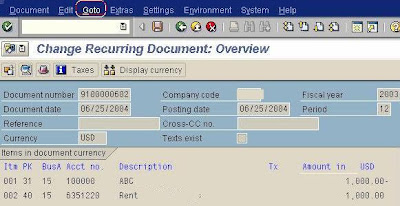
Change Recurring Document:
Initial Screen appears of the last recurring entry document number.
The fields may be changed to view another recurring entry document.
Complete the relevant fields & Click enter

2. To view additional line item details double-click to select the
appropriate line item.

You may go here using path Environment -> Recurring entry data

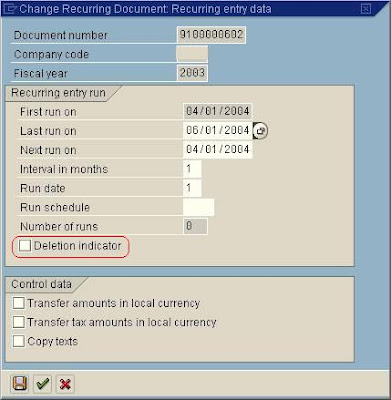
3. Select the following menu path Goto -> Recurring entry data


4. Mark a recurring entry for deletion.
If recurring entry is marked for deletion , the document will remain in the
system for audit trail purposes but will be stopped from having
payments made against it.
.

5. Click

SAP FBD1 Recurring Vendor

Indonesian


Use SAP FBD1 procedure to enter Non-PO (Purchase Order) related recurring vendor or customer payments.
Recurring entries are business transactions that are repeated regularly.

Procedures
1. Go to Enter Recurring Entry: Header Data screen

2. Enter data
- Company code
- First run eg. 30.04.2007
- Last run eg. 31.03.2008
- Interval (in months, between each run of the recurring entry)
- Run date (date of entry to be run).
If not specify, date used will follow first run.
- Document type eg. AB or SA.
- Currency/rate
(No need to specify unless it differs from exchange rate table)
- Reference (usually number of customer or vendor)
- Translation date (for determining the exchange rate to be used)
- Document header text
- Posting key
- Account
3. Click

4. Go to Enter recurring entry : Add vendor item
Complete relevant data

5. Click

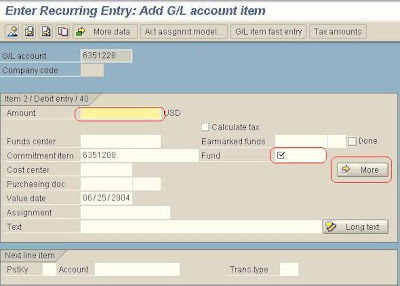
6. Go to Enter Recurring Entry : Add G/L Account item screen
Enter relevant data


7. Click to Select the ALL ACCT ASSIGNMENTS
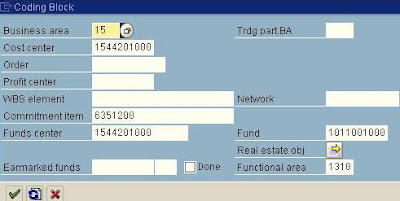
8. Complete the coding block relevant field

9. Click continue

10. Go to Enter Recurring Entry : Correct G/L account
(You can also go here from SAP Tcode FBD2)


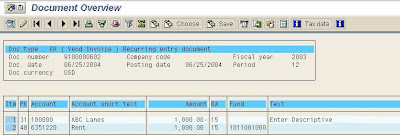
11. Click Document overview
(You can also go here from SAP Tcode FBD3)

Enter Recurring Entry: Display Overview screen

5. Click

SAP FBD1 Recurring problem2

Case
Is it possible to change the GL Account of the Recurring Entries.
This ones just for recurring docs, not for FI posted docs.

I have created a recurring document thru FBD1 and made couple of mistakes.
I cannot delete and re-do because, there are a total of 576 Lines.

Answer
You can't Change GL Account of Recurring Entries after once running the recurring

Create another recurring document, by using post with reference,
give the old recurring document number
and make the changes to the GL account on the specific line item.

Also can you put the value as zero for the GL account you want to delete
and enter a new line item with fresh GL details.


SAP FBD1 Recurring problem

Case :
We have a recurring document with 16 lines.
A few months ago the amounts on 2 lines (lines 11 and 12)were changed to zero.
Since then, lines 13 - 16 have not posted.

I do not see any way to completely delete the lines with zero.
How can I fix this so lines 13 - 16 post when we execute the recurring docuemnts?


Answer:
Mark this one for deletion and create a new recurring template.

SAP FBD1 Recurring procedure

Procedures
1. Go to Enter Recurring Entry: Header Data screen

2. Enter data
- Company code
- First run eg. 30.04.2007
- Last run eg. 31.03.2008
- Interval (in months, between each run of the recurring entry)
- Run date (date of entry to be run).
If not specify, date used will follow first run.
- Document type eg. AB or SA.
- Currency/rate (No need to specify unless it differs from exchange rate table)
- Reference (usually number of customer or vendor)
- Translation date (for determining the exchange rate to be used)
- Document header text

3. Click
to go to the Enter Recurring Entry: Add G/L account items screen.
Enter relevant data

4. Click
to go to the Enter Recurring Entry: Display Overview screen

5. Click

SAP FBD1 Recurring code

For Recurring document template you can use the following T.Codes

FBD1 - Creation of recurring document
FBD2 - Change recurring document
(This is for changing of amount and recurring periods)
FBD3 - Display recurring document
F.14 - Posting of recurring document
F.15 - Display of recurring document

For Diff. run schedule recurring documents you can use this T.Codes
OBC1 - Creation of Diff. Run schedule Recurring document
OBC2 - Enter run dates for Recurring document
F.14 & F.15 steps are same